Agent view
Use this site with your AIService Workers with Workbox & Preact
Public page content as Markdown. Copy it into a conversation or give your agent the Markdown link.
/markdown/writing/service-workers-with-workbox-preact
text/markdown
# Service Workers with Workbox & Preact
Source: https://www.applification.net/writing/service-workers-with-workbox-preact
Markdown: https://www.applification.net/markdown/writing/service-workers-with-workbox-preact
Published: 2018-03-06
Updated: 2022-02-13
> [Service Workers](https://developers.google.com/web/fundamentals/primers/service-workers/) are an amazing new browser advancement that are key to creating Progressive Web Apps
> [Workbox](https://developers.google.com/web/tools/workbox/guides/get-started) is an super tool to help you craft a Service Worker
> [Preact](https://preactjs.com/) is a fantastic slimline React based framework that is an excellent choice for building a PWA due to it’s lightweight footprint and out of the box PWA support
#### Preact CLI
The easiest way to get started with Preact is to use the [preact-cli](https://github.com/developit/preact-cli). You don’t need to use this but it comes with a lot of well thought out opinionated decisions that make your life easier.
Go ahead and install preact-cli globally:
```
npm i -g preact-cli
```
Once installed use the following command to scaffold our app:
```
preact create default preact-sw-magic
```
The preact-cli will creates a PWA for you out of the box, it comes fully loaded with:
- Automatic code splitting for routes
- An auto generated Service Worker using sw-precache
- PRPL pattern to load up the app quickly
- Pre-rendering / server-side rendering hydration
To see your app complete with service worker run the following command:
```
cd preact-sw-magic && npm run serve
```
You should now be able to access your PWA on [https://localhost:8080](https://localhost:8080). You can verify the Service Worker is installed by cracking open [Chrome Developer Tools](https://developer.chrome.com/devtools) and selecting the Application tab, then the Service Worker tab.
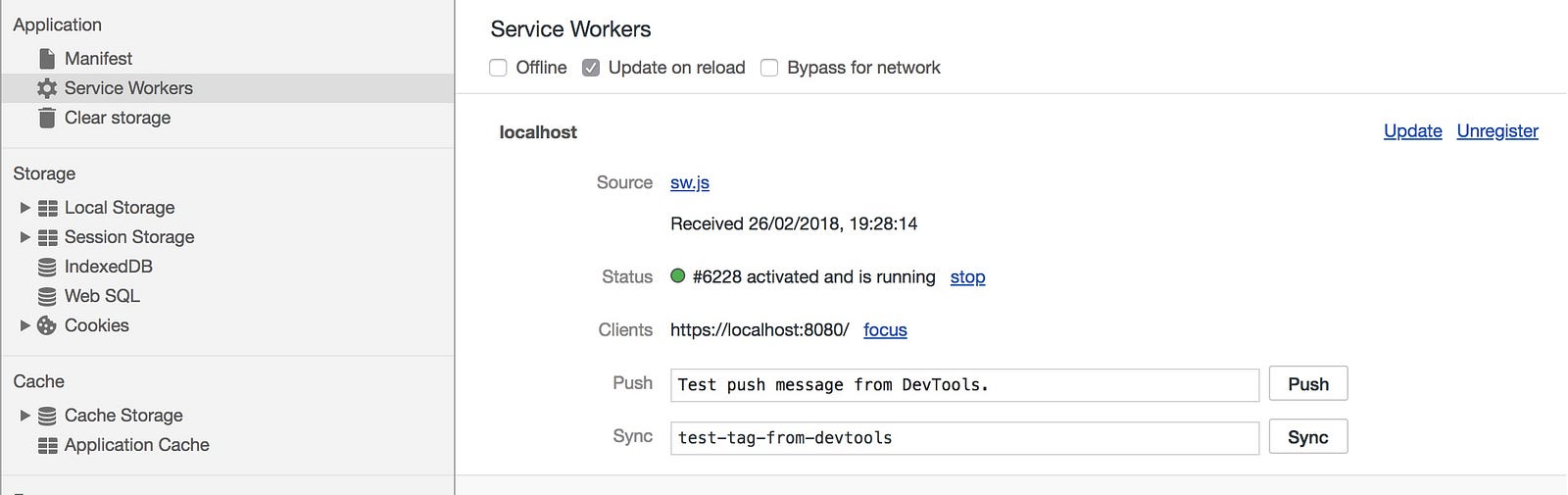
Installed Service Worker
If you then shift to the Cache tab, you’ll see your entire app has been cached for offline use, nice!
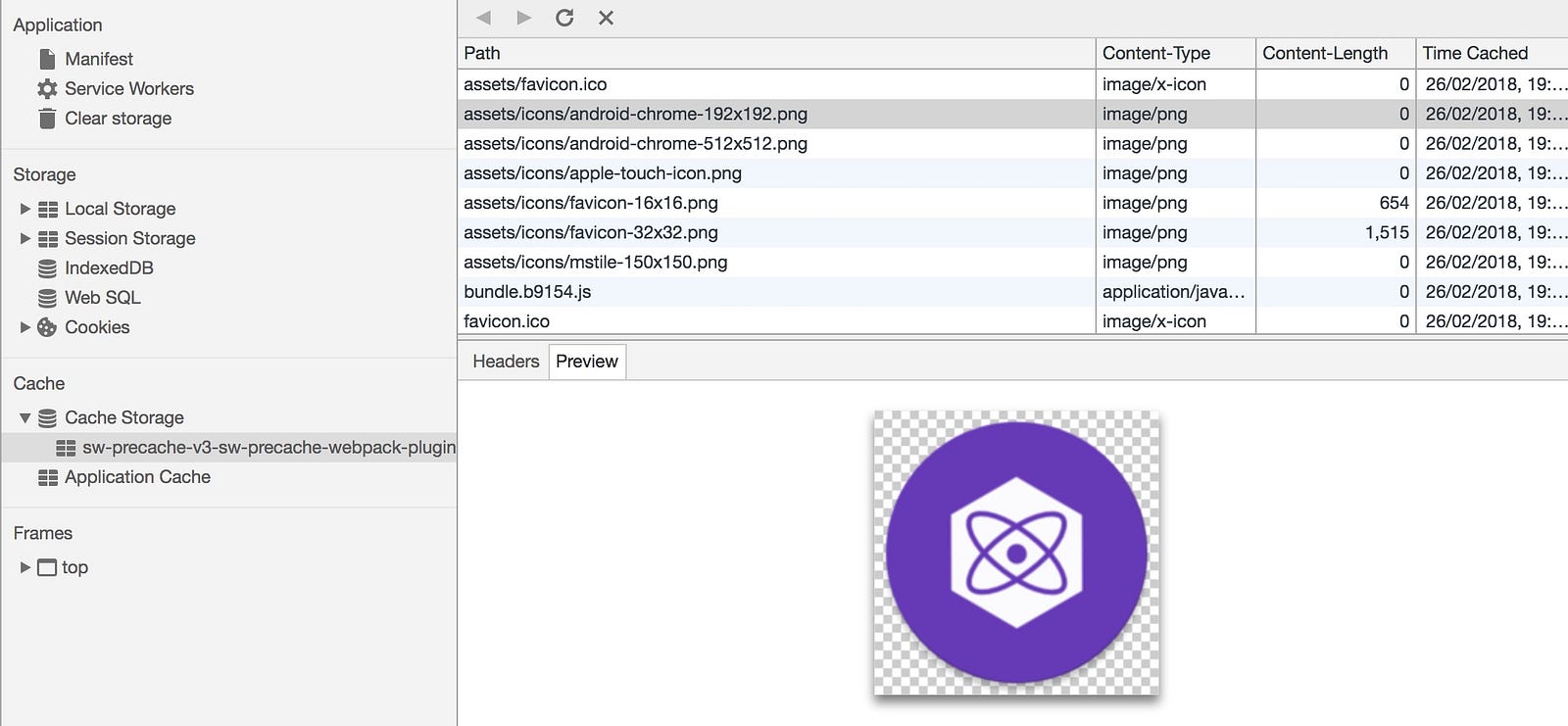
Service Worker Precaching
#### Why Workbox?
This is all fantastic and if all you want to do is pre-cache your App then sticking with the [SW-Precache](https://github.com/GoogleChromeLabs/sw-precache) provided for you out of the box by Preact is a fine choice.
If your PWA needs are a little more ambitious though, for example, you want to add push notifications or background sync to your service worker then you’ll need to shift over to workbox.
#### Workbox that Preact
The preact-cli automagically generated your service worker as part of the build process. To get control over that service worker we’ll need to first disable that preact-cli magic.
**Turn off Preact CLI service worker generation**
In package.json modify the default scripts for build & serve as follows:
```
"scripts": {
"build": "preact build --no-service-worker
```
```
false",
"serve": "preact build --no-service-worker && preact serve"
}
```
This tells Preact not to generate a service worker.
**Install workbox webpack module**
We’ll be using the latest workbox 3.0 which is in beta:
```
npm install --save-dev workbox-webpack-plugin@3.0.0-beta.1
```
**Create preact.config.js**
In the root of your project create a preact.config.js file and configure the workbox webpack plugin as follows:
This tells webpack to use [workbox injectManifest](https://developers.google.com/web/tools/workbox/modules/workbox-webpack-plugin) which will allow us to use our own service worker combined with workbox.
**Create service-worker.js**
To make this work we’ll need to create the `service-worker.js` file in the root of the project. We’ll just get things back to where they were and set up pre-caching in service-worker.js as follows:
```
workbox.precaching.precacheAndRoute(self.__precacheManifest || []);
```
**Install service worker using Preact template html**
The index.html just like the service worker is automagically generated for you by the preact-cli. In our case we need a bit more control over that file in order to tell it to use our custom service worker file. Thankfully we can add another flag to the preact-cli to use a [custom template.html](https://github.com/developit/preact-cli#template).
Back in package.json we’ll further extend our build scripts as follows:
**Create a template.html**
The default index.html for Preact can be found in the [Github repo](https://github.com/developit/preact-cli/blob/master/src/resources/template.html). Create a file named template.html in the `src` directory and copy in the contents from the repo. At the end add another script tag with the following:
**Custom Service Worker**
Once again run:
```
npm run serve
```
If you go back into Chrome developer tools and access the service worker section you should be able to verify that your service worker is now `service-worker.js` instead of `sw.js.`
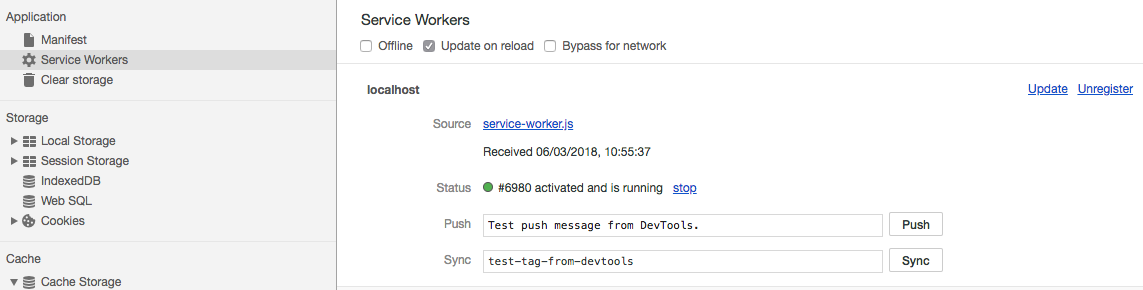
If you open the `service-worker.js` file you should see something similar to:
Note that pre-caching is in place pointing to a manifest file which webpack generated listing all the files that are to be cached. You’ll also see we are using Workbox in the service worker.
Everything is now set up for you to add to `service-worker.js` and customise your service worker as needed. I’d recommend starting by looking at the [Workbox common recipes](https://developers.google.com/web/tools/workbox/guides/common-recipes) but there is plenty more you can do:
- [Customise Precache](https://developers.google.com/web/tools/workbox/modules/workbox-precaching)
- [Configure Background Sync](https://developers.google.com/web/tools/workbox/modules/workbox-background-sync)
- [Configure Google Analytics Offline](https://developers.google.com/web/tools/workbox/modules/workbox-google-analytics)
- [Configure Push Notifications](https://developers.google.com/web/fundamentals/push-notifications/)
---
#### The Code
The code for this tutorial can be found on Github at [https://github.com/applification/workbox-preact](https://github.com/applification/workbox-preact)
## Explore Applification
- [Home](https://www.applification.net/markdown)
- [About Dave](https://www.applification.net/markdown/about)
- [Client work](https://www.applification.net/markdown/client-work)
- [Products](https://www.applification.net/markdown/products)
- [Writing](https://www.applification.net/markdown/writing)
- [Agents & API docs](https://www.applification.net/markdown/agents)
- [Contact routes](https://www.applification.net/about)
- [LinkedIn](https://www.linkedin.com/in/hudsond/)