Agent view
Use this site with your AIReact Native Custom Fonts
Public page content as Markdown. Copy it into a conversation or give your agent the Markdown link.
/markdown/writing/react-native-custom-fonts
text/markdown
# React Native Custom Fonts
Source: https://www.applification.net/writing/react-native-custom-fonts
Markdown: https://www.applification.net/markdown/writing/react-native-custom-fonts
Published: 2017-06-05
Updated: 2022-02-13
TLDR =\> Quick tutorial on setting up custom fonts with React Native across iOS and Android.
#### Cross Platform Custom Font Naming
To avoid conditional logic in your React Native styles it’s a good plan to rename a font if necessary to ensure it is read the same on both iOS and Android.
For example, I’m using a font file named “vinchand.ttf”. Yet when I open it up in [FontBook.app](http://FontBook.app) I can see that the fonts full name is “vincHand” with a capital H.
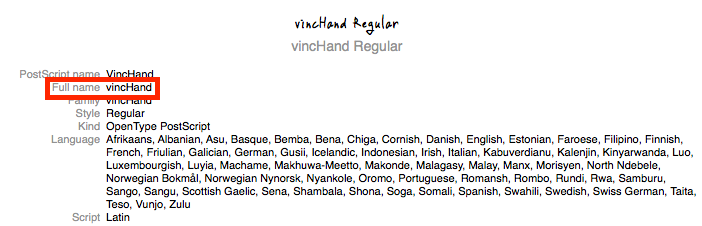
To ensure things run smoothly I’m going to rename the font to be “vincHand.ttf” as Android will read from the filename whilst iOS will read from the full name property.
#### Add Fonts to Assets
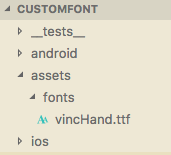
Next add all the font files you want to an “assets/fonts” folder in the root of your react native project:
#### Package.json
Next we need to tell React Native where our custom fonts are located. We do this by adding rnpm to package.json providing the path to the font files:
Then we tell react native to link those font files for us:
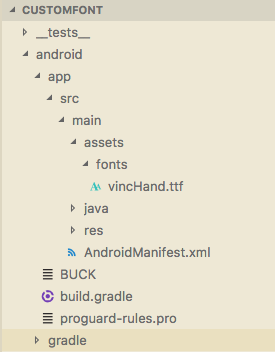
This should add the font references in your Info.plist file for iOS and on Android copy the font files to android/app/src/main/assets/fonts. You can verify this by opening up Info.plist from the iOS folder and looking for a UIAppFonts key, you should see something similar to:
#### Adding Fonts to Android
On Android if you look in the file path “android/app/src/main/assets/fonts/” you should see your fonts have been copied over:
#### React Native Styles
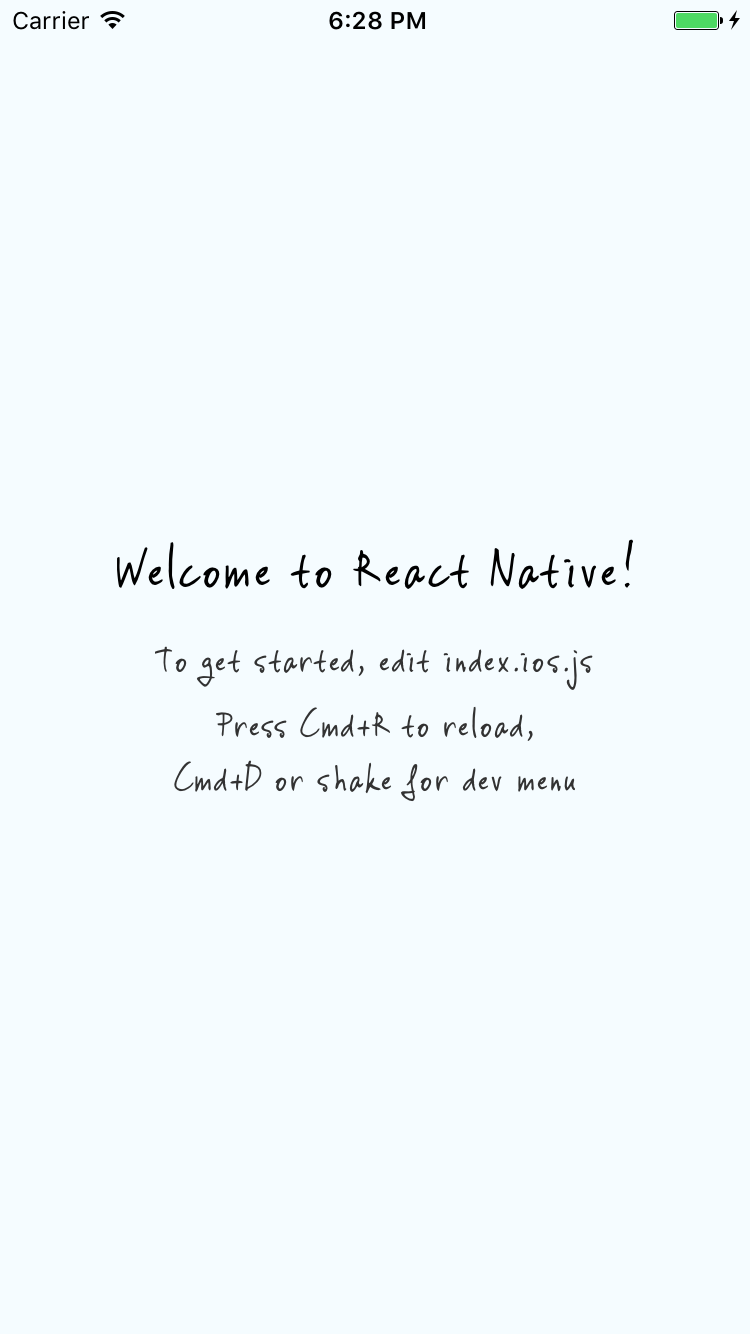
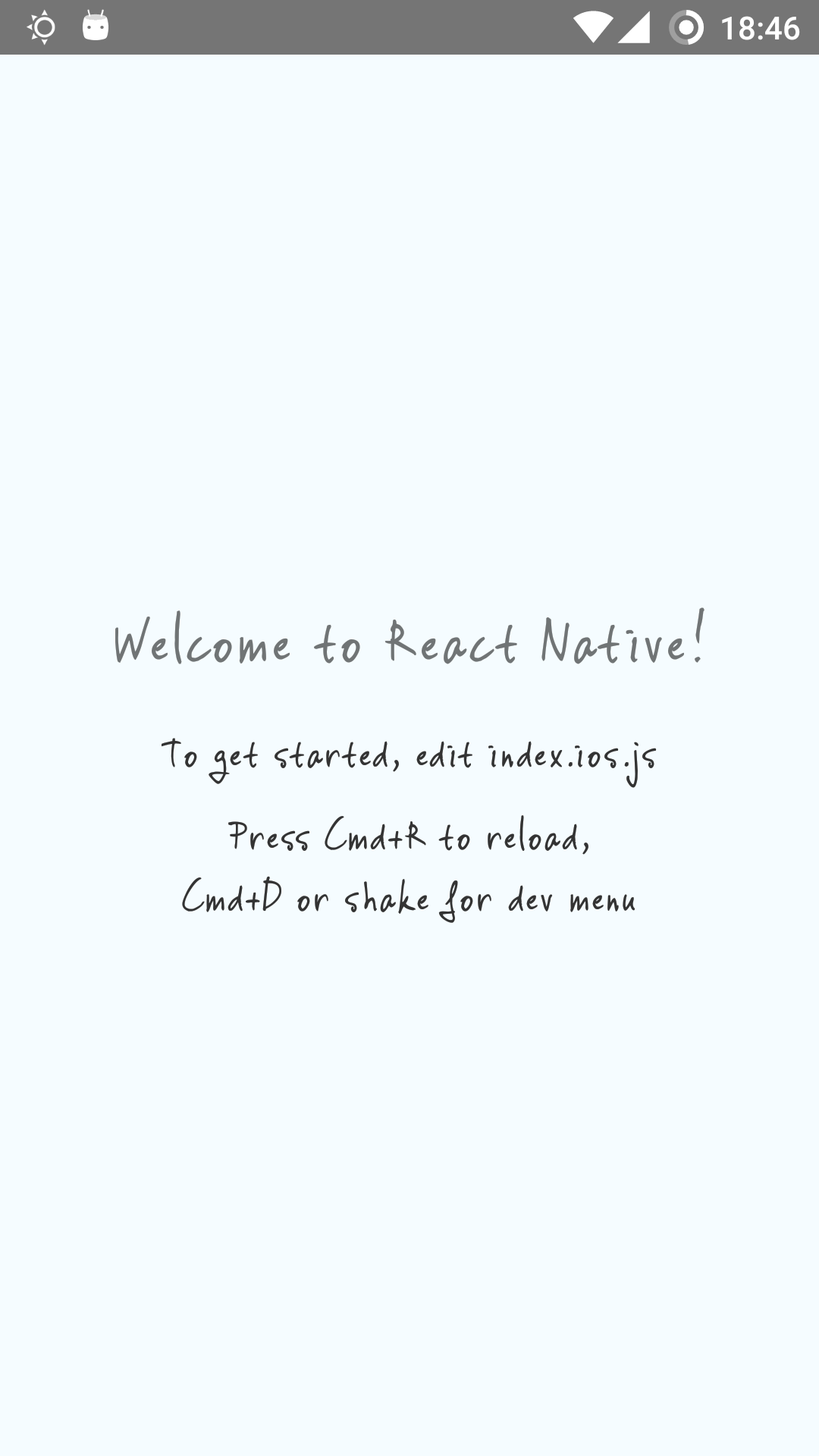
With your fonts embedded and referenced it’s a simple case of adding them to your React Native styles. Simply add a fontFamily property with your font name:
#### iOS Screenshot
#### Android Screenshot
#### Source Code
You can find the source code for this tutorial on GitLab:
**[Dave Hudson / react-native-custom-fonts](https://gitlab.com/applification/react-native-custom-fonts)**
*[Code to go with tutorial on custom fonts for react ](https://gitlab.com/applification/react-native-custom-fonts)**[native](http://nativegitlab.com)*[gitlab.com](http://nativegitlab.com)
## Explore Applification
- [Home](https://www.applification.net/markdown)
- [About Dave](https://www.applification.net/markdown/about)
- [Client work](https://www.applification.net/markdown/client-work)
- [Products](https://www.applification.net/markdown/products)
- [Writing](https://www.applification.net/markdown/writing)
- [Agents & API docs](https://www.applification.net/markdown/agents)
- [Contact routes](https://www.applification.net/about)
- [LinkedIn](https://www.linkedin.com/in/hudsond/)